Connect Open Telekom subscription
To link your own existing Open Telekom subscription in oneclick™, you need the data of your subscription.
1. Data from the OPEN TELEKOM CLOUD subscription
- Log in to your T-Systems account.
- Under “Custom Console”, click on Identity and Access Management.
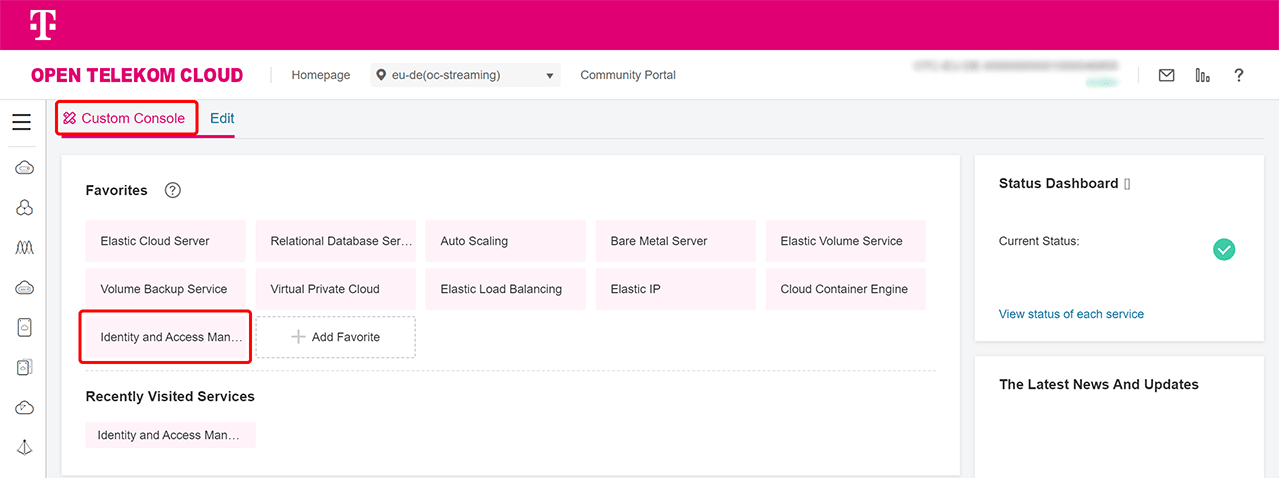
- We recommend creating a new user.
Only use your existing user if you are sure that “Programmatic access” is assigned to it.
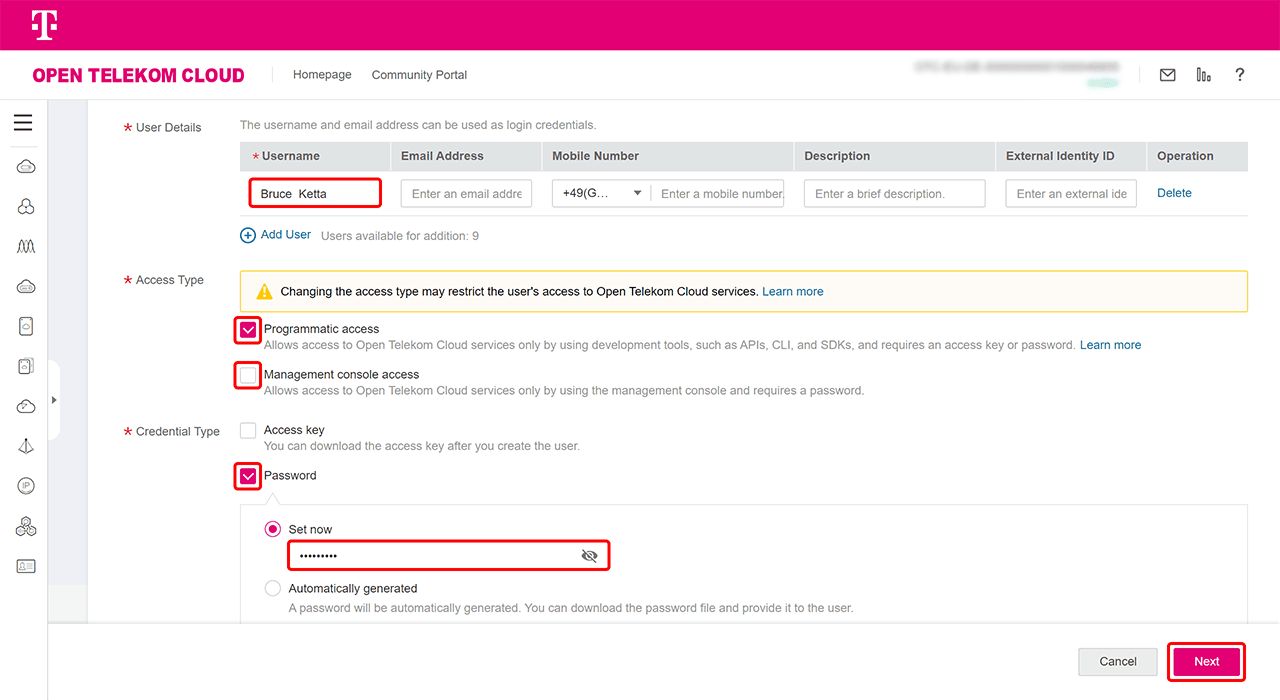
- Create a new user by clicking on Create User in the top right-hand corner.
- Assign a user name.
- Under “Access Type”, select the “Programmatic access” option and uncheck the “Management console access” box.
- Specify the “Credentials Type” for the user.
- Here you have the choice of either using an automatically generated password or setting your own. In this guide, we will set our own password and therefore select Set now.
- Choose a password and enter it.
- Make a good note of this password and then click on Next.
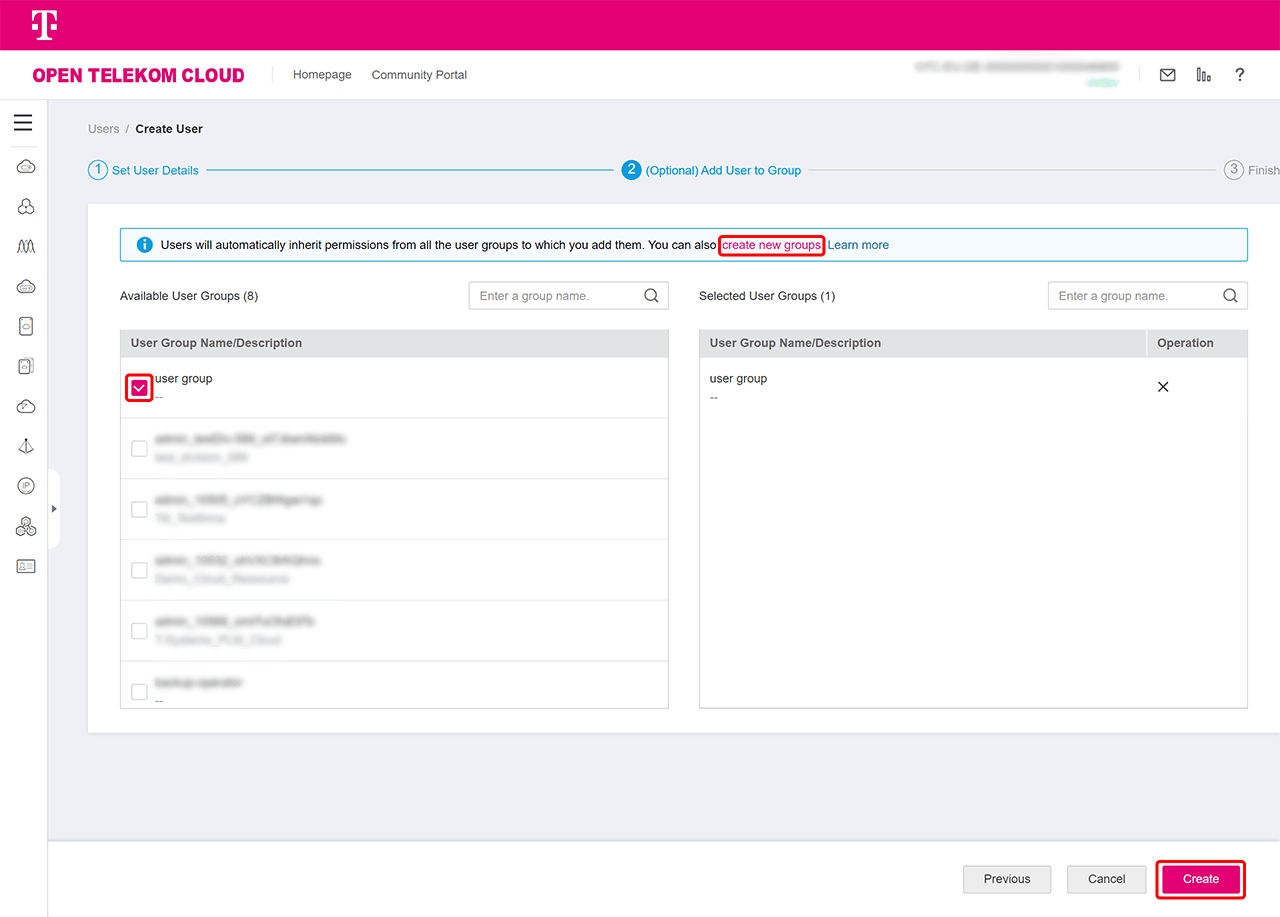
- Assign authorizations to your user via group assignment.
- Users automatically receive the permissions of all user groups to which you add them.
- You can also create new groups by clicking on Create New Groups. Give the group a name and click OK.
- After selecting the group, click Create.
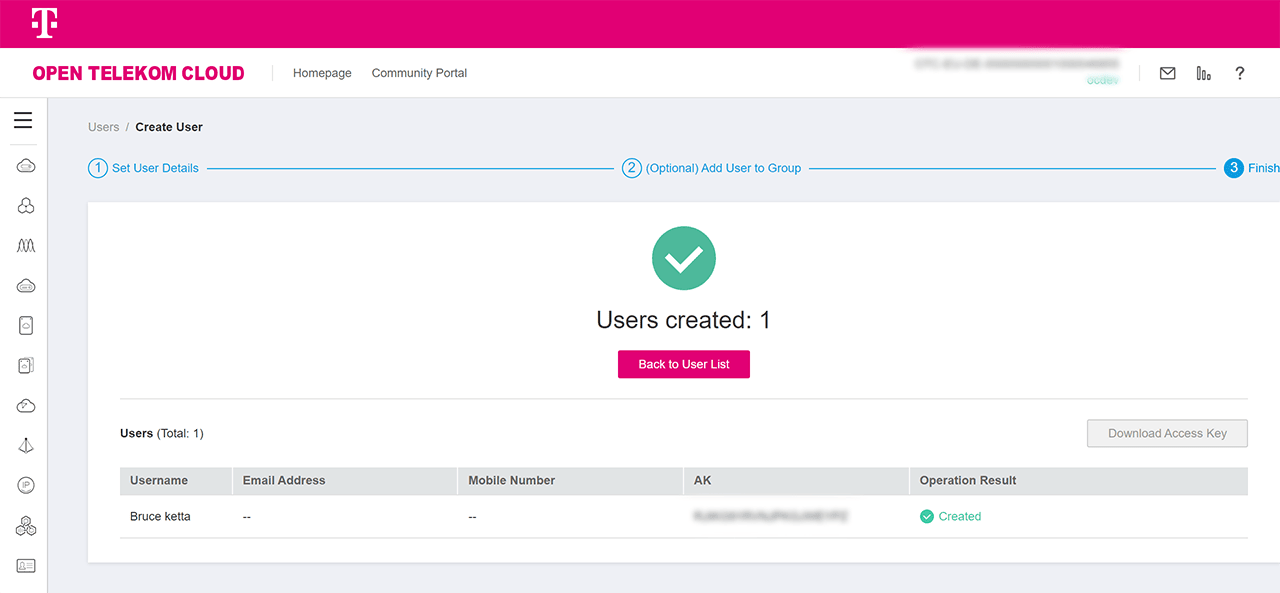
- Your user has been created successfully.
2. Assign authorizations
- Go to your group, select Permissions and click on Authorize
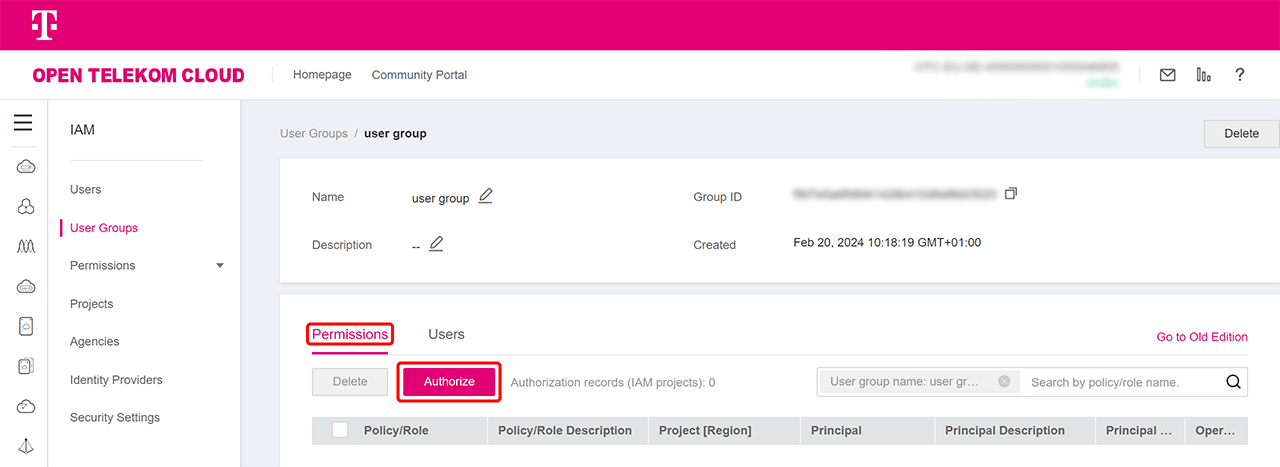
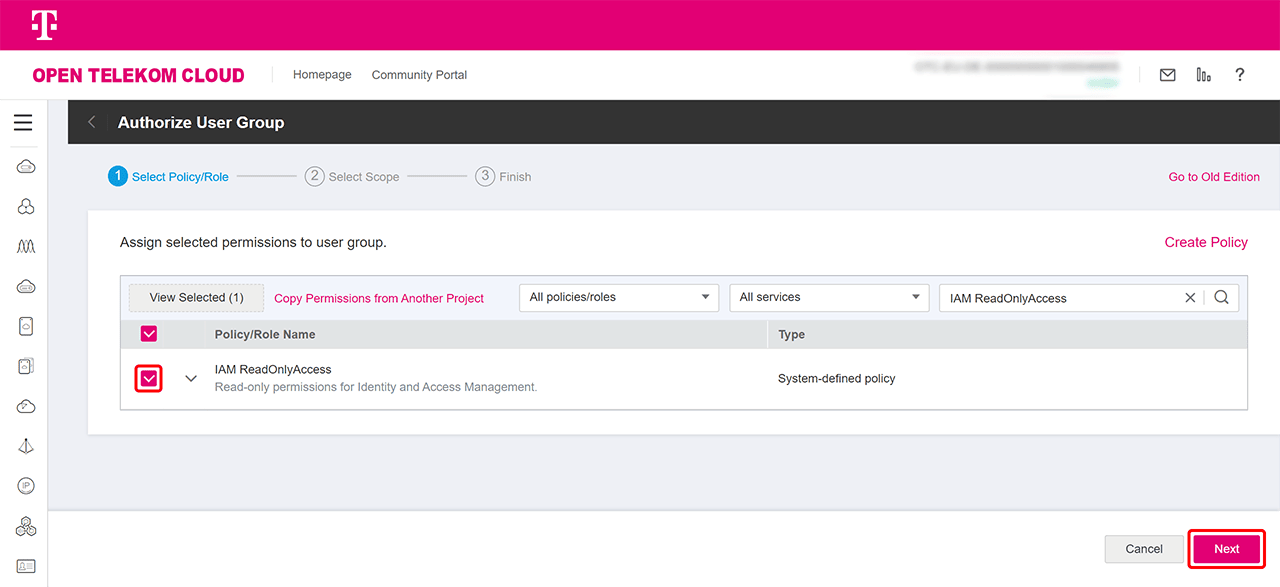
- Search for the “IAM ReadOnlyAccess” authorization, select it and click Next.
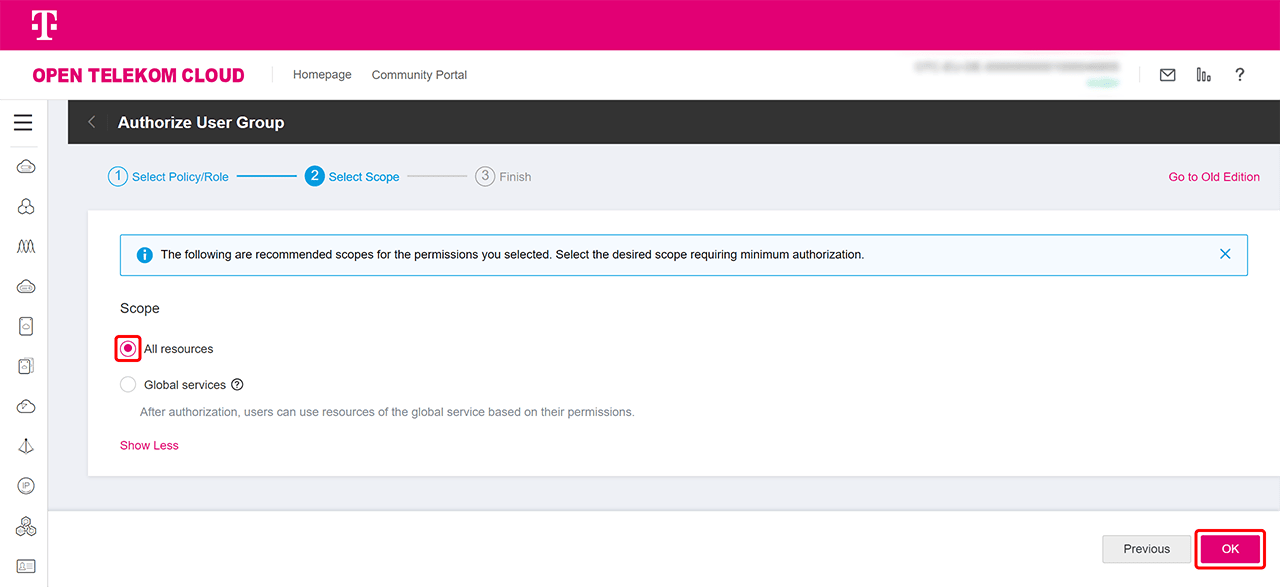
- In the next step, select “All resources” and click OK.
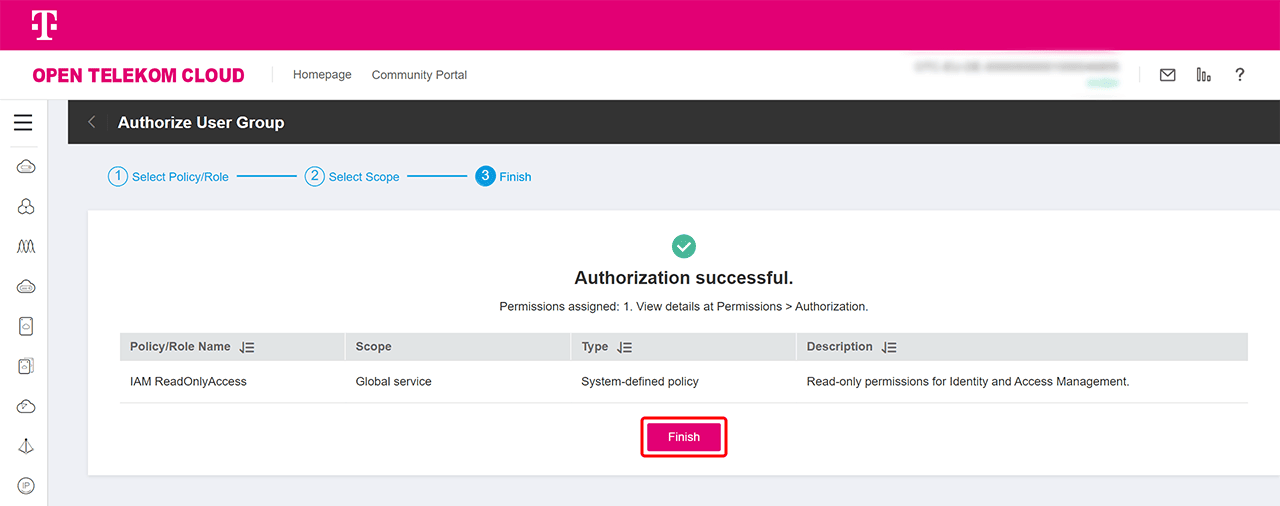
- Click on Finish.
- Click on Authorize again.
- Then search for the “Tenant Administrator” authorization, select it and click Next.
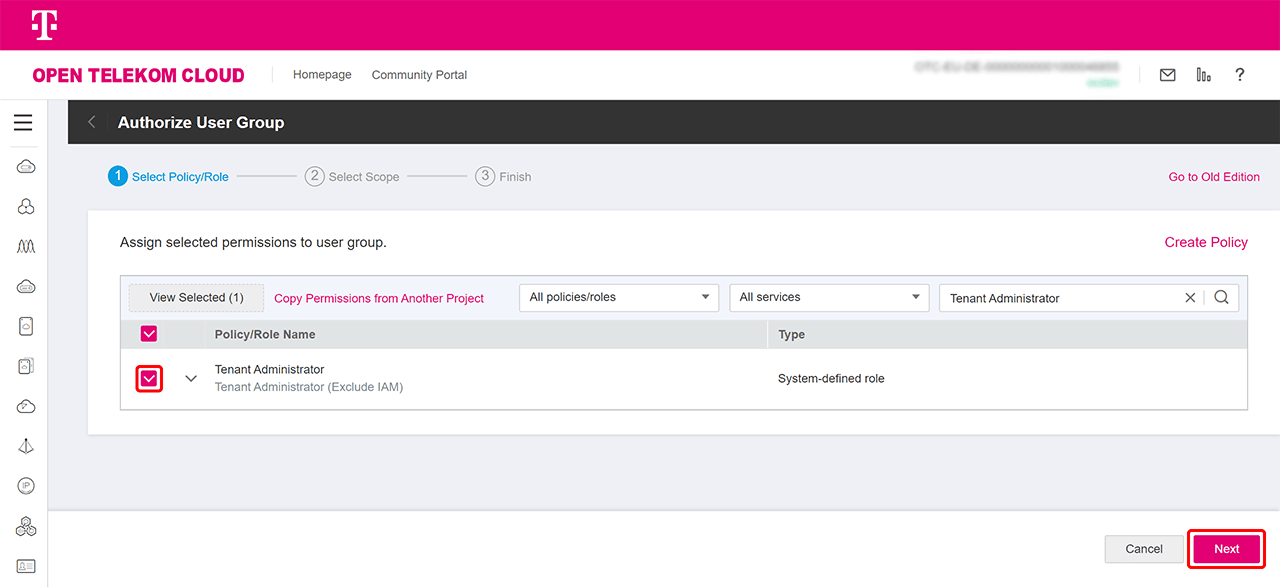
- Choose between these two options:
- All resources : If you want to make all projects available in oneclick™, select this item.
- Region-specific-projects : The selected authorizations are applied to resources in the region-specific projects you have selected.Click OK.
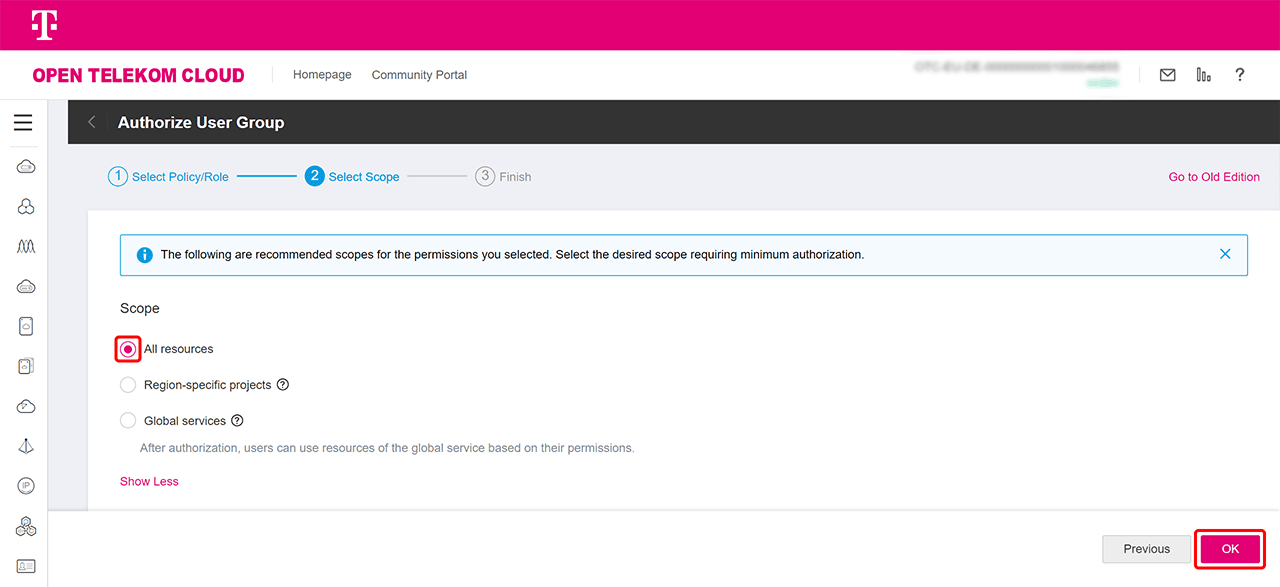
- Click OK.
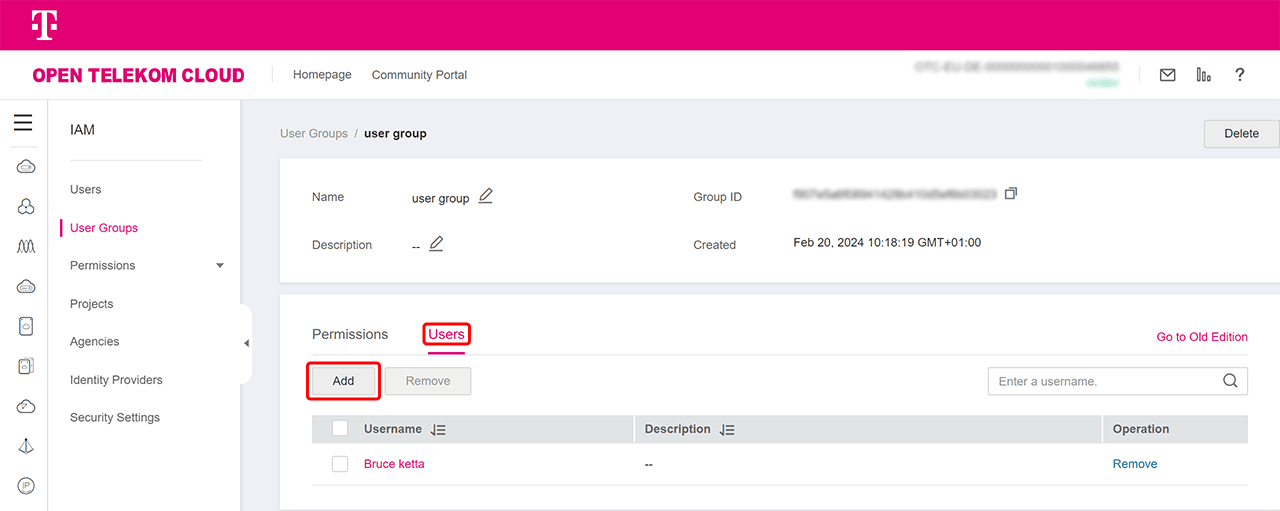
- You have the option of adding further users to the group by going to Users and then clicking on Add.
3. Login data
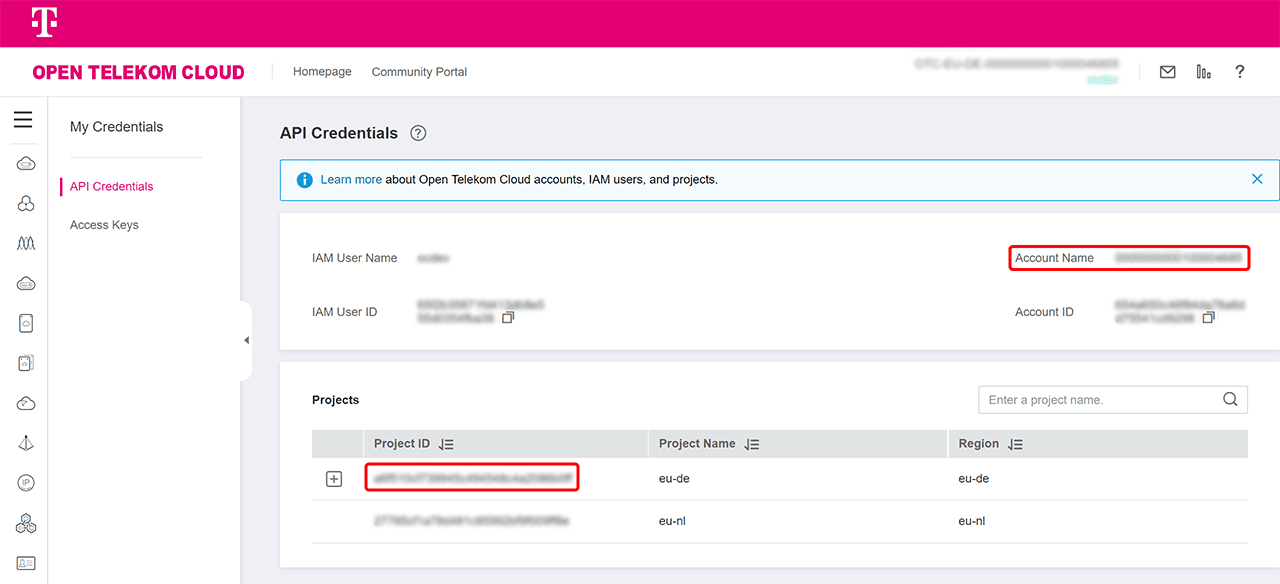
Required entries in oneclick™ include the “Domain Name” (equivalent to “Account Name” in Open Telekom), and we also recommend entering a “Project ID”.
- Open the menu at the top right and click on My Credentials.
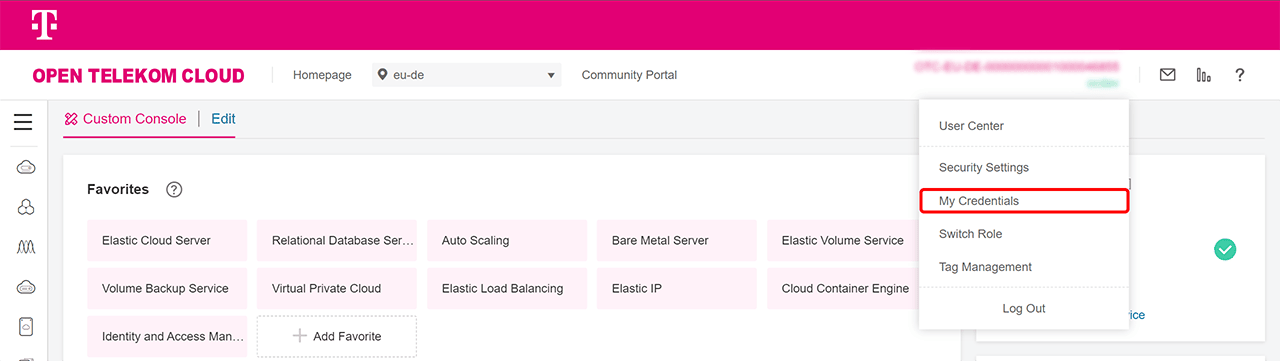
- From this view you can copy the “”Account Name” (equivalent to “Domain name” in oneclick™) and the “Project ID”.
4. Enter data in the oneclick™ Admin
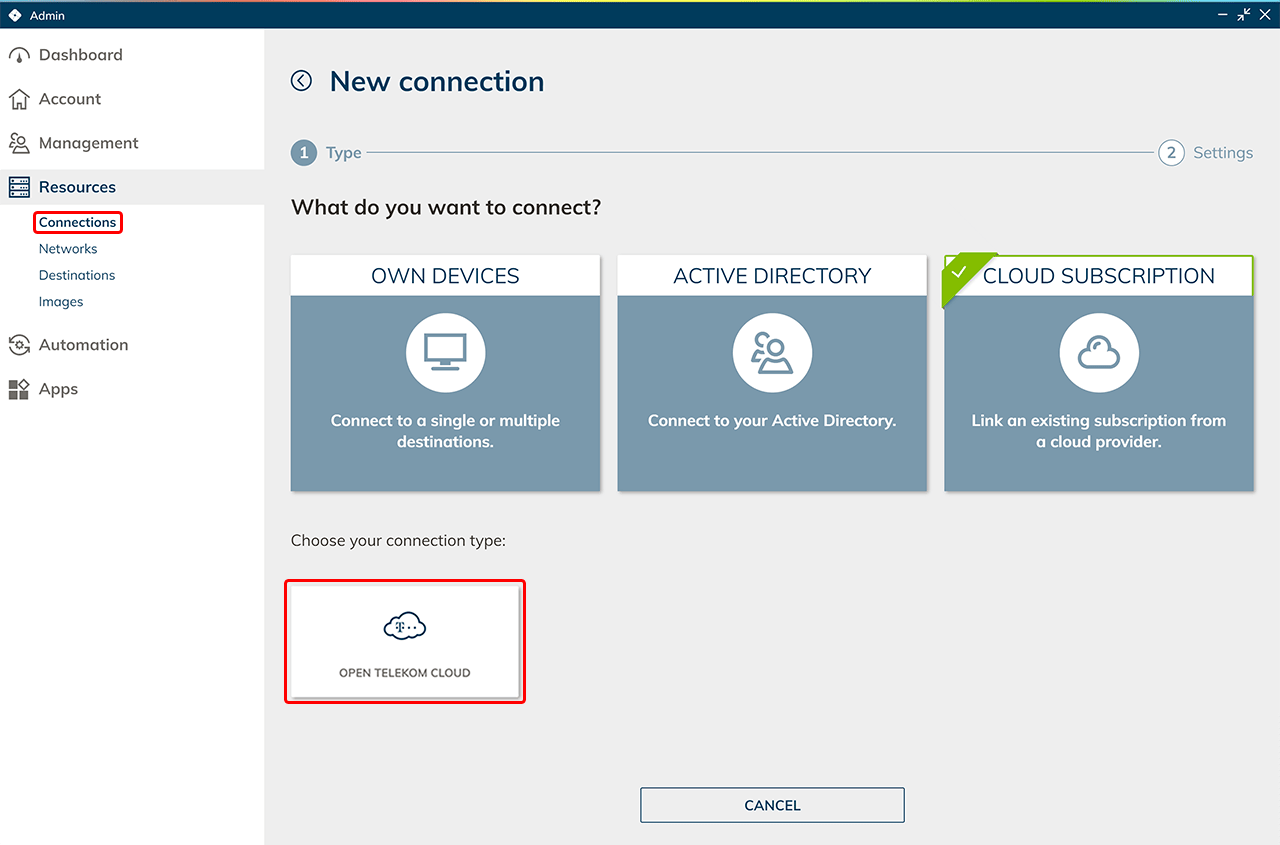
- In the oneclick™ Admin, click on Connections in the Resources tab.
- Click on the + Icon to connect your cloud subscription in oneclick™.
- Select the Cloud Resources tile and click on the required cloud provider.
- Give the connection a name of your choice and enter your data from your Open Telekom Cloud subscription.
Even if an OTC IAM user has permissions for “All resources” (i.e., is not restricted to a specific project), we always recommend specifying a project ID to ensure a successful connection.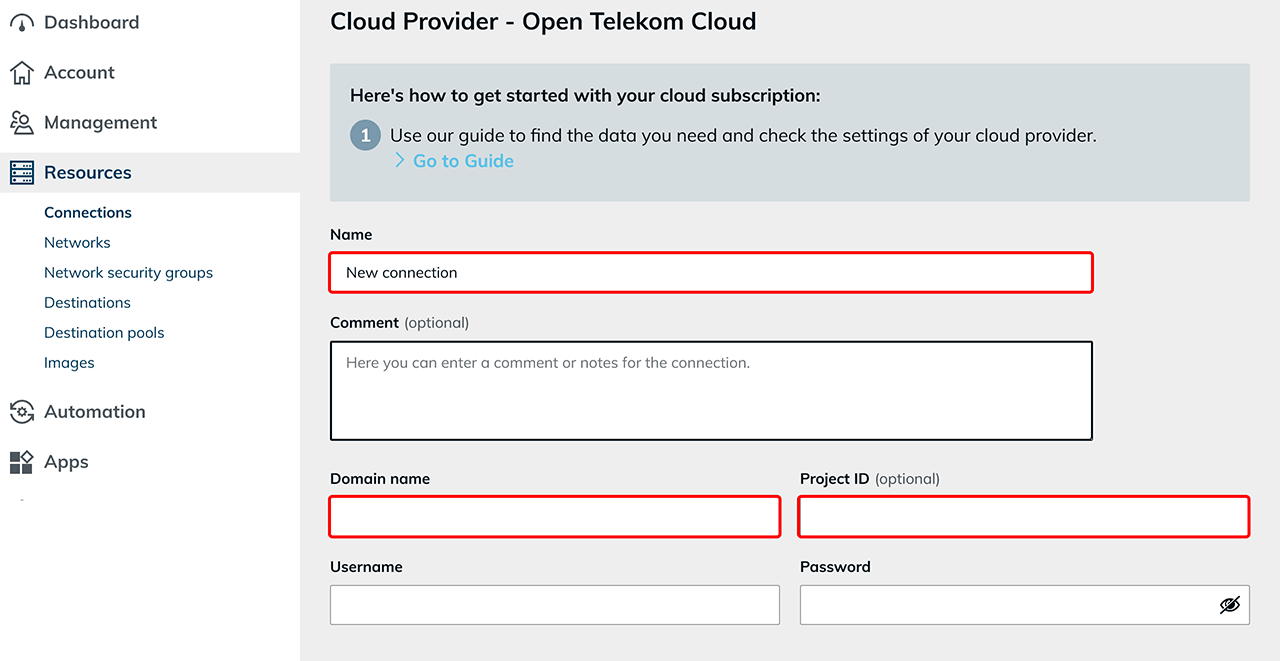
- Click Save in oneclick™. Your Open Telekom subscription is now linked and existing resources are read out.
You will only be charged when using virtual machines.
5. Create Cloud Resources via oneclick™
You can find a detailed guide on how to connect cloud resources in our documentation. Start directly at step 2 on the page.
Important notes on the configuration and use of the Standard Network Security Group (NSG):
Always create an outbound rule in the Default Security Group that allows all destinations, all ports, and all protocols.
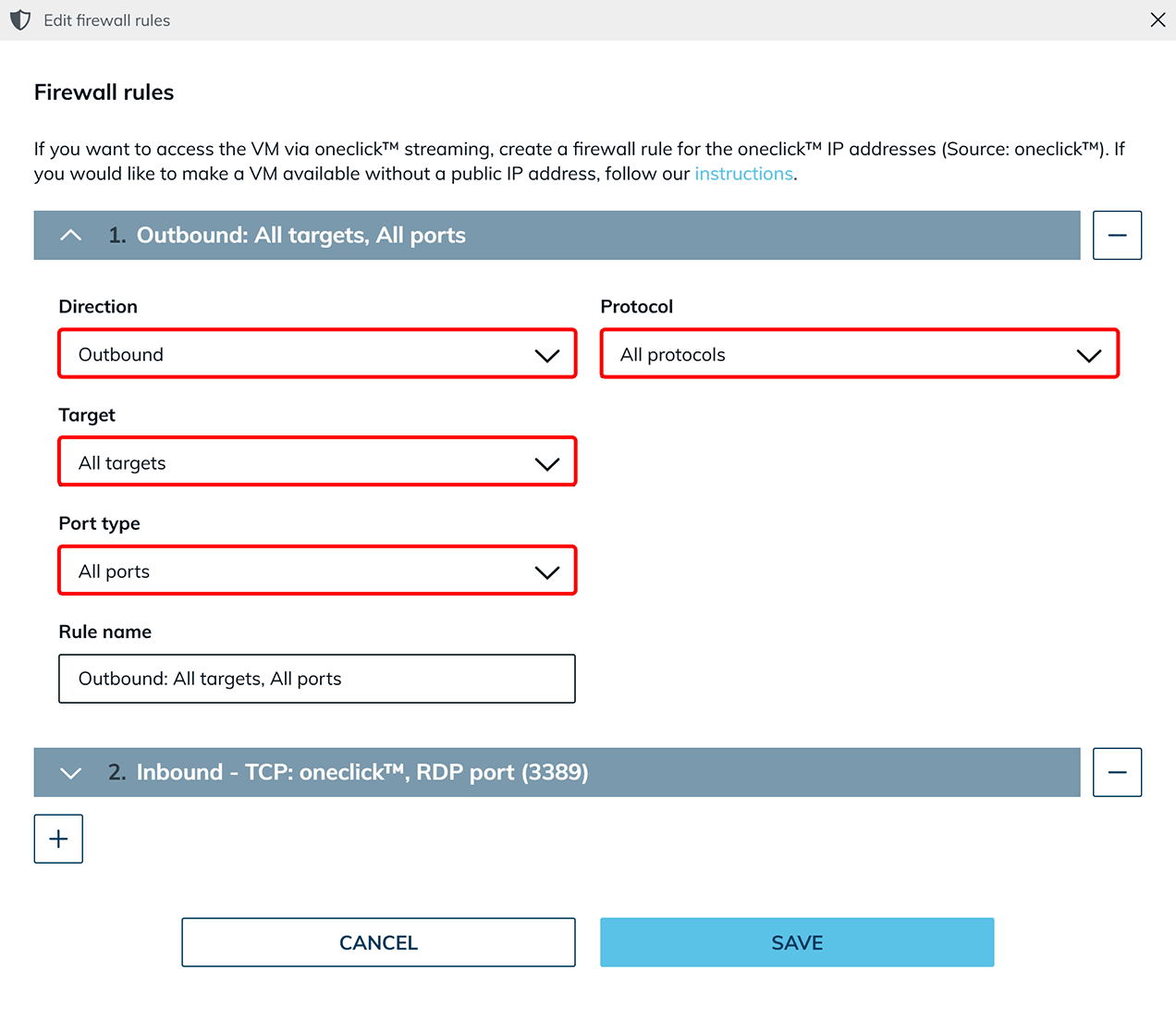
In general, the connection works as described. However, if the connection is not established as expected, it is recommended to use the existing “Standard Network Security Group” (Default NSG) from OTC. Instead of creating a new NSG, simply add the “oneclick™ NSG” to the Default NSG and define the required “outbound rules” there.
6. You have already created VMs via the OTC portal and are retrieving them in oneclick™?
Then you have probably added a firewall rule for this cloud resource in oneclick™ to enable access via oneclick™.
When adding a firewall rule, oneclick™ automatically creates a new Network Security Group (NSG) for this cloud resource in OTC. At the same time, the default security group (Default Security Group) is removed, as it contains predefined rules that cannot be deleted and may pose a security risk.
If you have previously configured custom settings in the Default Security Group that you still need, you have two options to reapply them:
- Via oneclick™: Create new firewall rules in oneclick™ and apply them in the cloud resource settings. The firewall rules you define there will automatically be added to the associated oneclick™ Network Security Group (NSG) in OTC.
- Via the OTC portal: Create a new Network Security Group in the OTC portal and reapply your previously configured rules. Then, assign this new NSG to your cloud resource.
7. Renew Open Telekom subscription password
Usually, the password for your user from the Open Telekom project expires after 90 days and you need to store a new one. We recommend that you keep this date in mind so that your virtual machines continue to run as usual.
- Change the password in the Open Telekom Cloud by repeating all the steps from the instructions “Data from the Open Telekom subscription” under point 5.
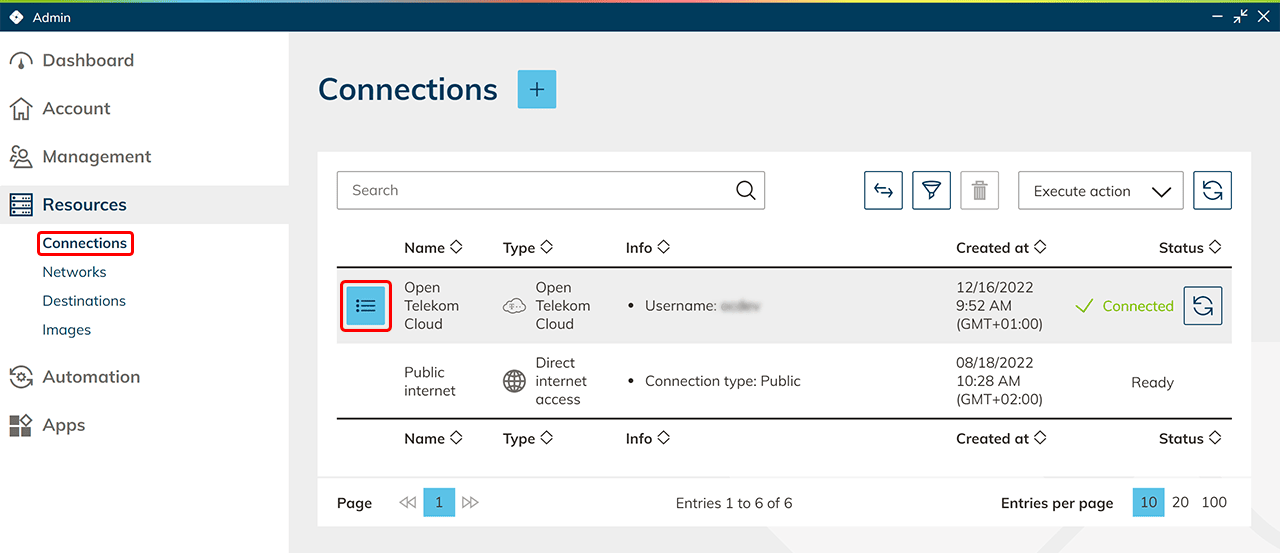
- Then go back to the oneclick™ Admin and click on Connections in the Resources tab.
- In the row of your cloud connection click on the List icon to get to the detail view.
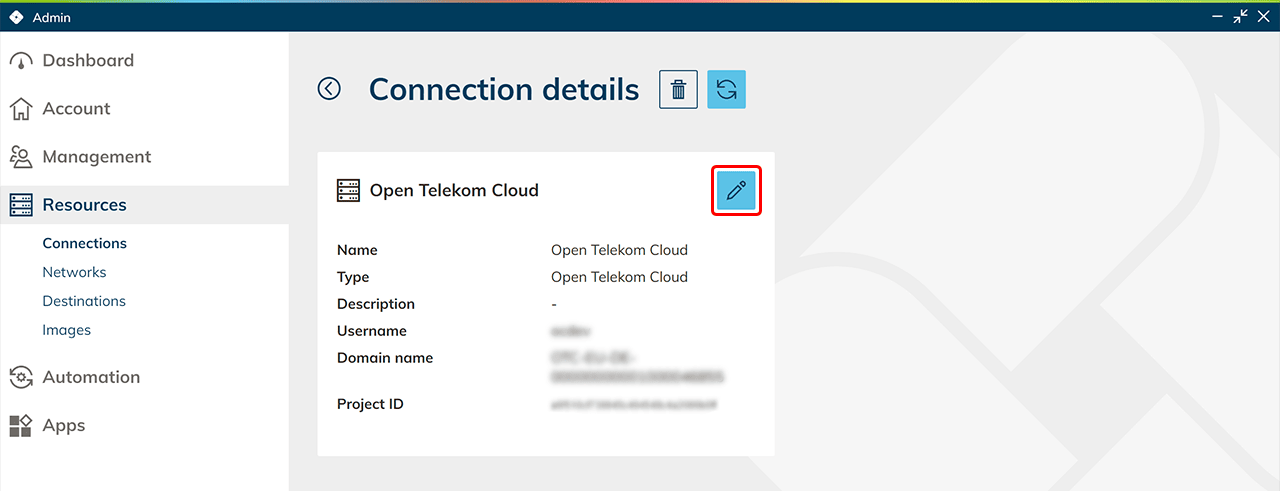
- Edit your Connection by clicking on the Pencil icon.
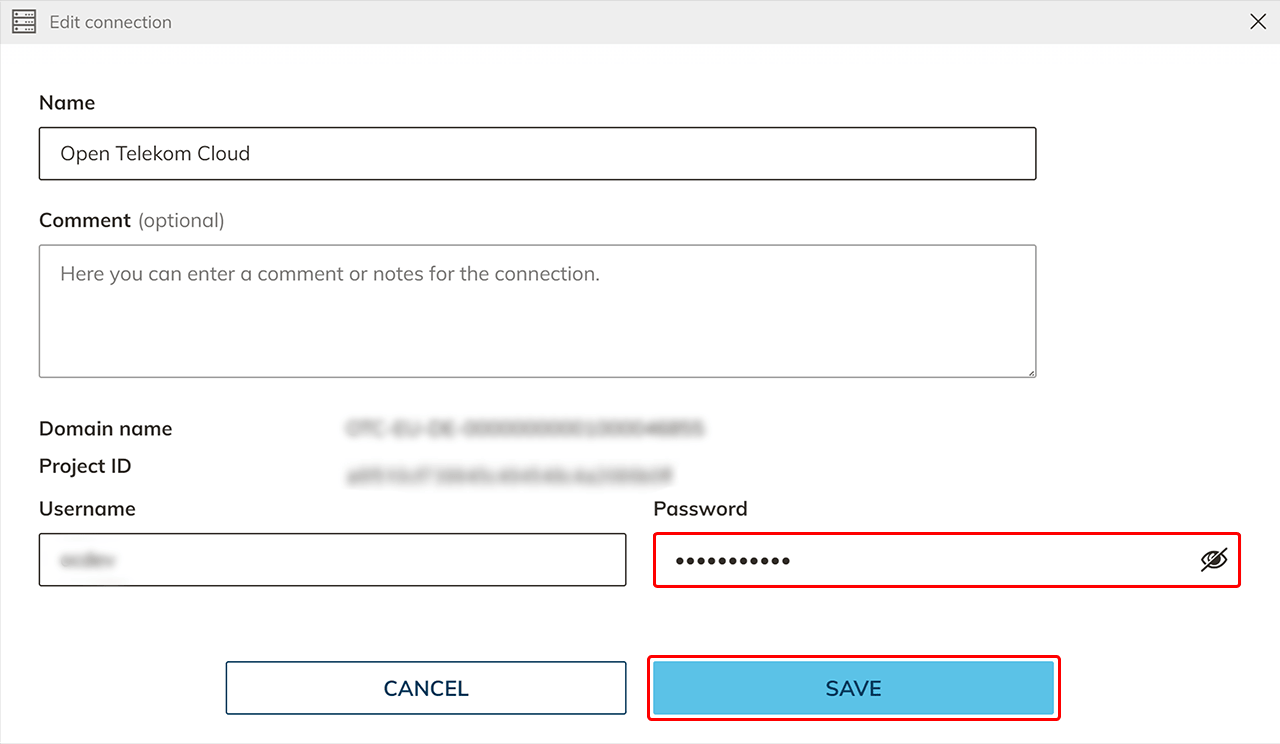
- Here you can enter the new password. Click on Save. Your new password is set.
- If you do not want the password to be renewed, you can turn this off in your Open Telekom account.
- Select Identity and Access Management in the overview.
- Click Account Settings and then click API Password Policy.
- Remove the check mark under “Prompt password change 15 days before expiration and force password change upon expiration.”
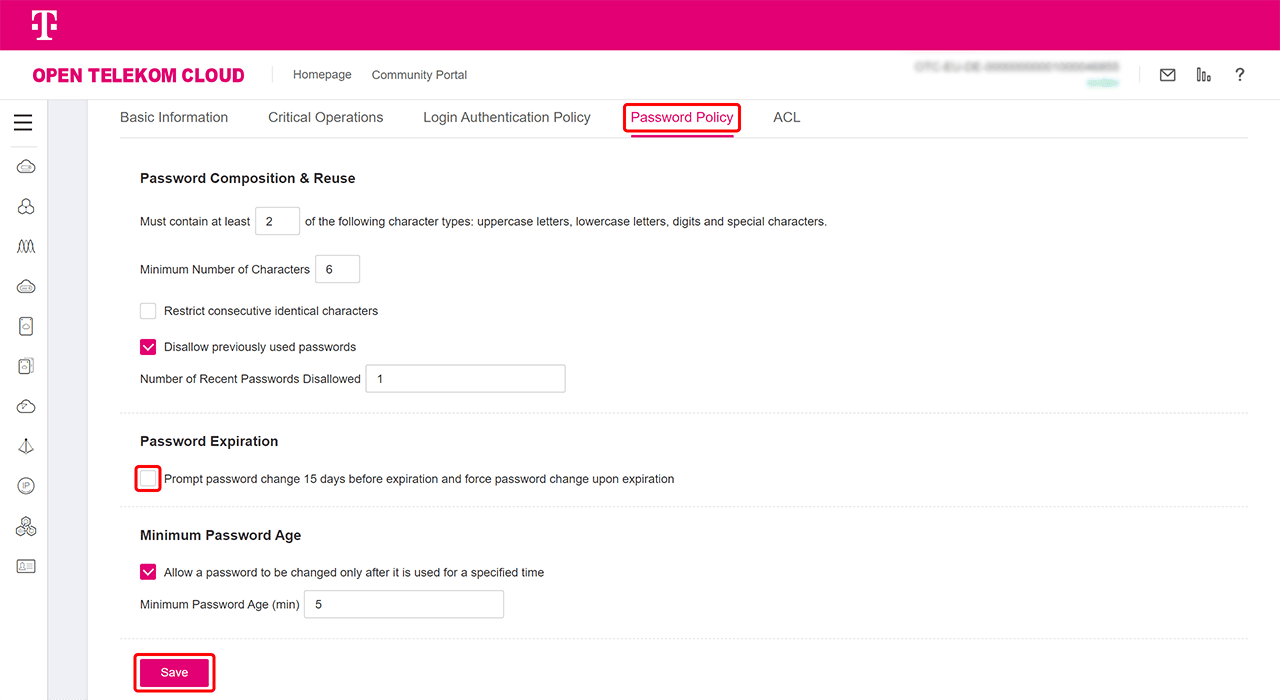
Your password will not expire now.
Support Notice
We do not assume any liability for the implementation of the described steps. If anything is unclear or if technical deviations occur, we recommend contacting the cloud provider’s support team directly.
Contact Information
T-Systems International GmbH
Hahnstraße 43
60528 Frankfurt am Main
Germany
Hotline:
0800 33 04477
Support Portal:
Open Telekom Cloud Support